
LUME FX – English Guide
Transform your avatar with rich, dynamic lighting. From soft ambiance to dramatic spotlight, LUME FX gives you full control with a sleek, easy-to-use HUD.
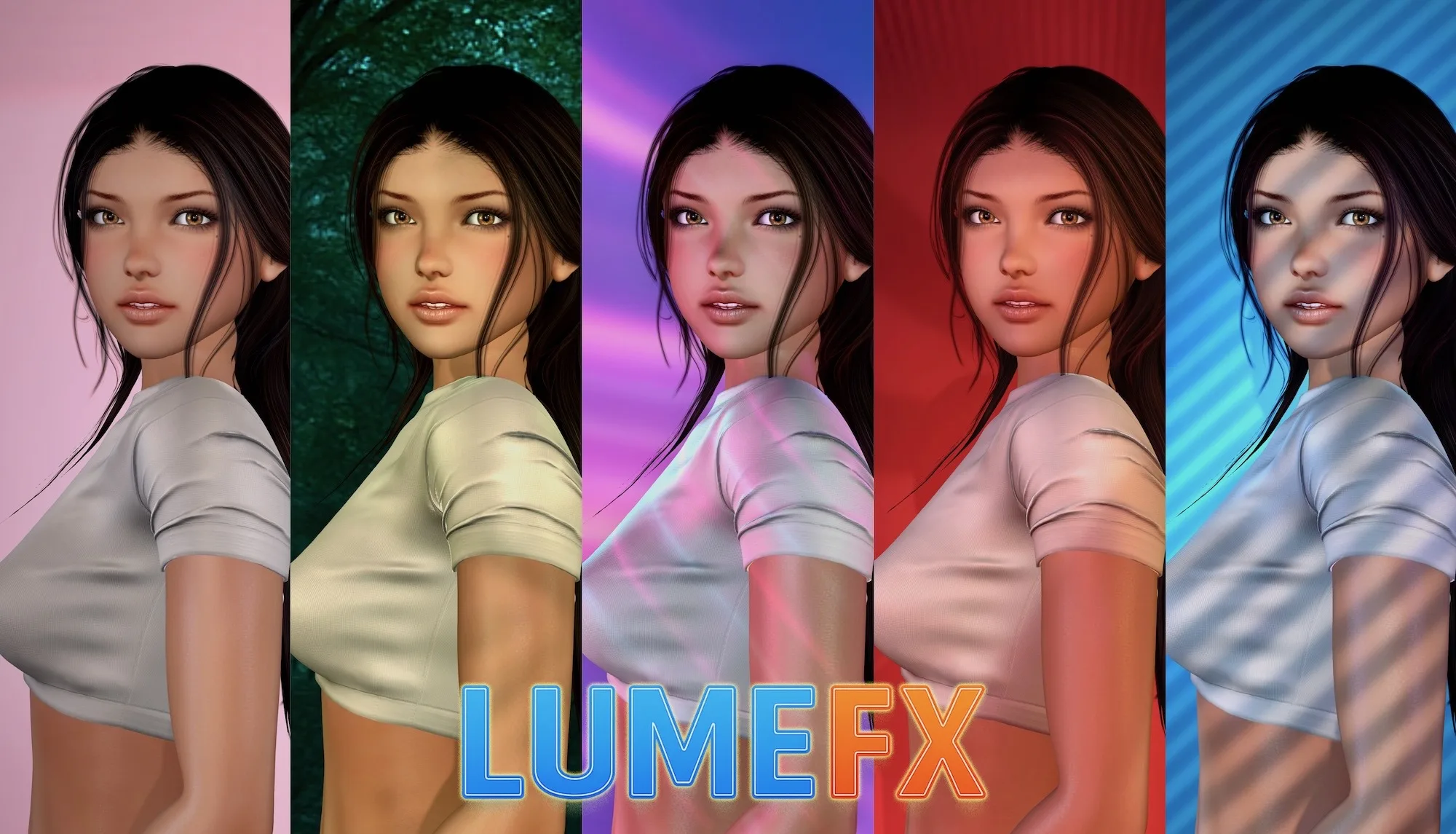
Blend environments, moods, and effects to create the perfect scene, whether you’re modeling or capturing the perfect shot.
Help Guide
The LUME FX system includes a wearable HUD, a fully transferable light system, and an optional face booster. You can give the lights to a model, and control them remotely through your own HUD. The HUD will automatically search for the light system and check for updates each time it’s attached, making setup fast and seamless.
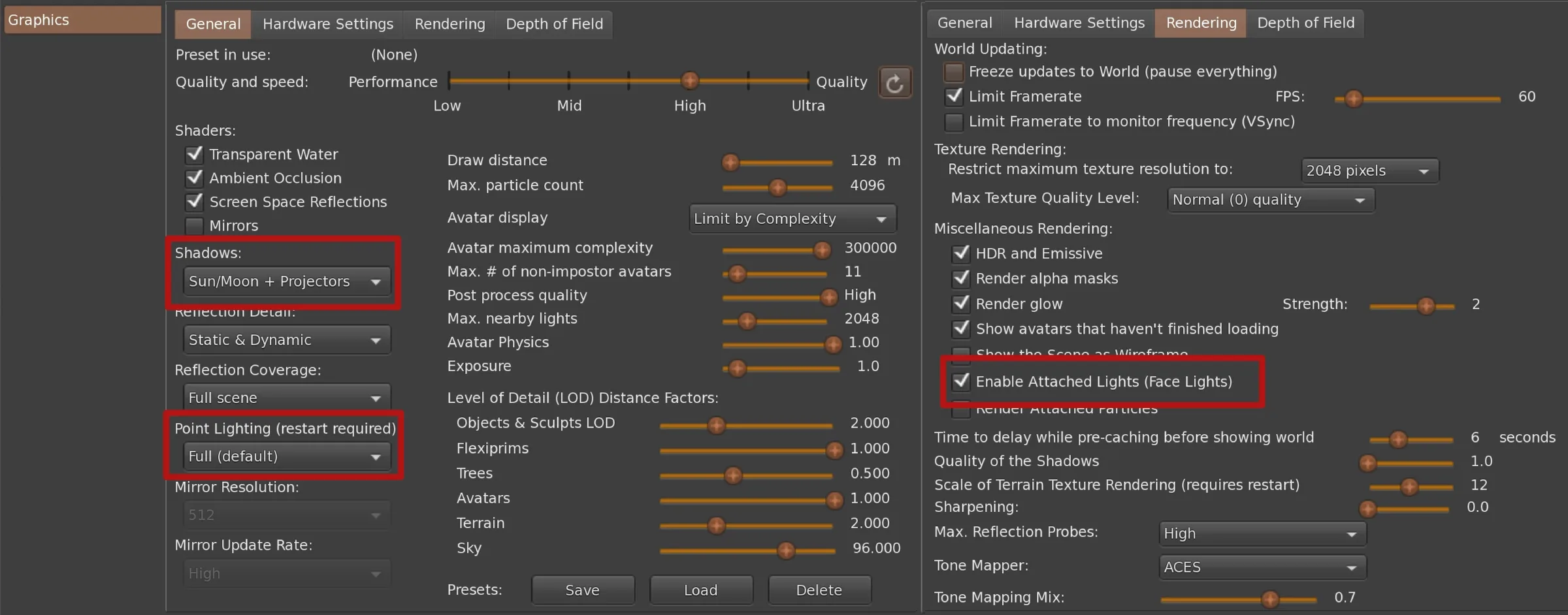
For LUME FX lighting to work correctly, please make sure your viewer graphics settings are configured as follows:
• In the Rendering tab, enable Attached Lights (Face Lights).
• In Graphics → General, set Point Lighting to Full and Shadows to Sun/Moon + Projectors so projector lights render correctly and cast shadows.
• Increase Max. Nearby Lights to a high value (e.g. 1000).
• For best visual results, set your overall graphics quality to High or Ultra.
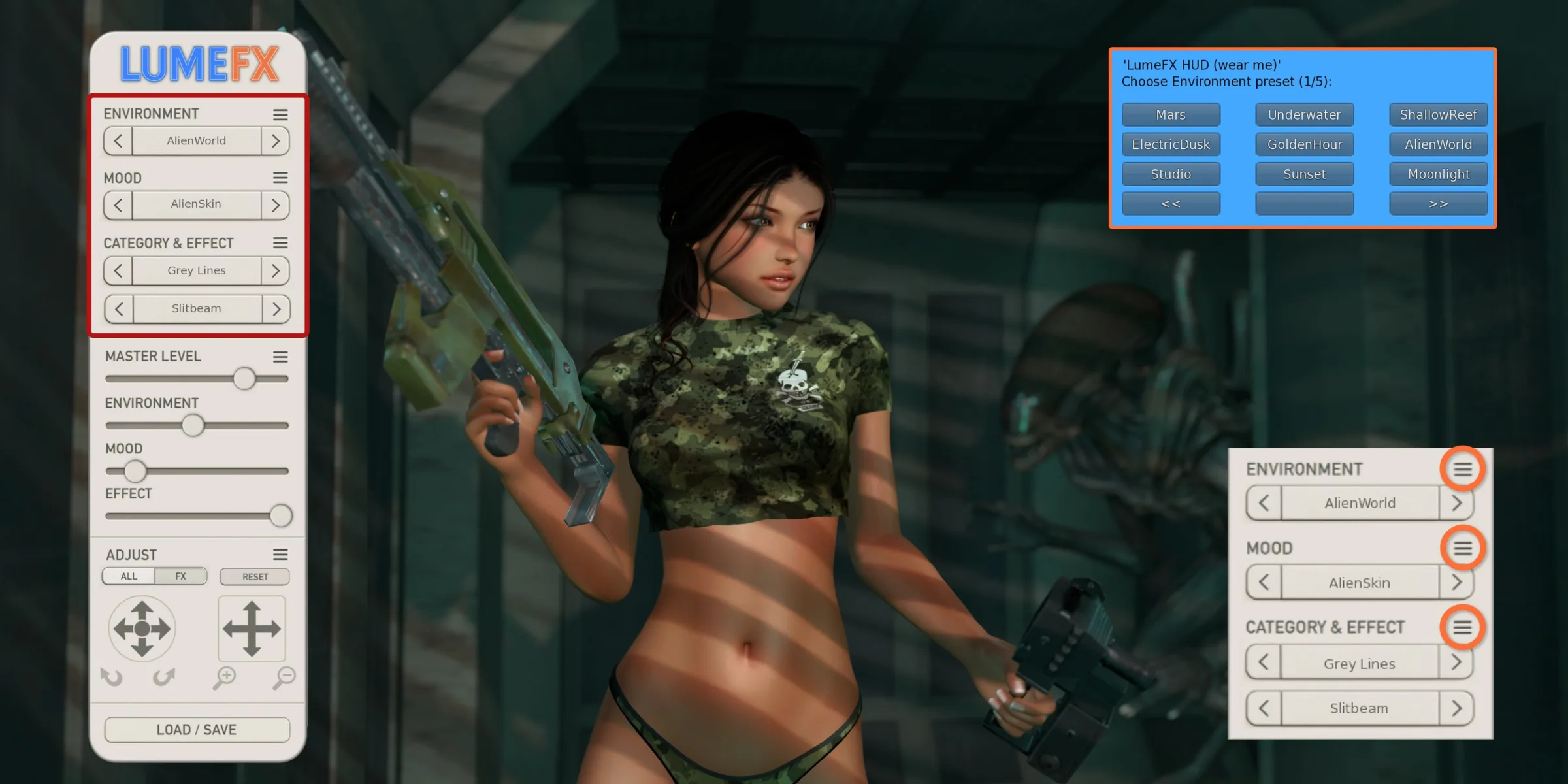
Use the LUME FX HUD to control Environment, Mood, and Effect lighting.
Tap the arrows on the HUD to cycle through presets, or click the ≡ icon or the preset text to open a selectable list.
When choosing Effects, you can browse by category to quickly narrow down the style you’re looking for.
Combine Environment, Mood, and Effect presets freely to build your look.
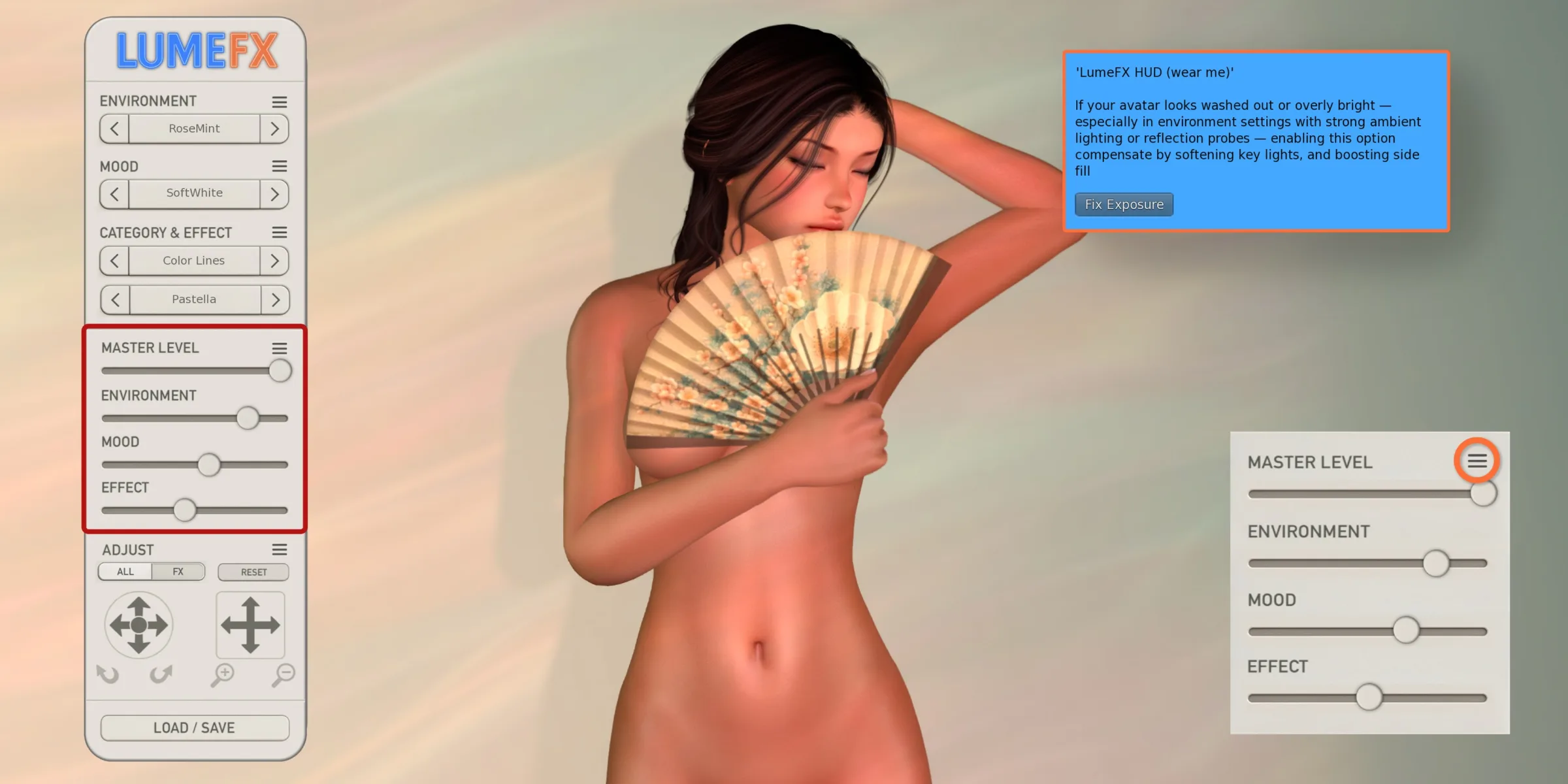
Use the sliders to adjust Master Level, Environment, Mood, and Effect lighting intensity. This lets you fine-tune your look for any preset combination.
If your avatar looks too bright or washed out in certain PBR environments, click the ≡ icon next to Master Level to enable Fix Exposure. This softens key lights and boosts side fill to balance the lighting.
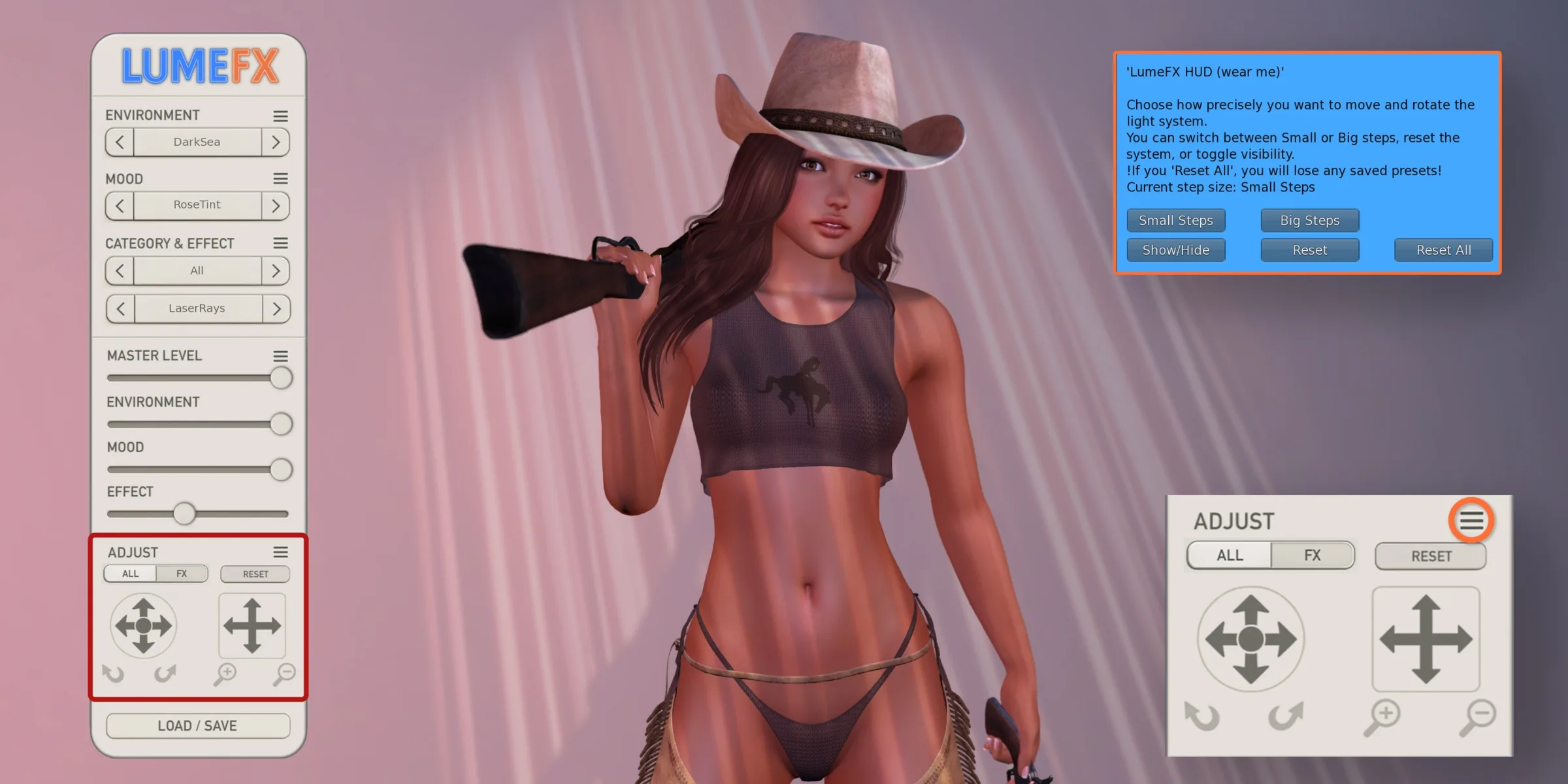
Use the arrows to move or rotate the lighting system. Click the ≡ icon to open the adjustment menu, where you can choose between small or big steps for precise control. You can also show or hide the system for manual editing, reset its position and rotation, or press Reset All to return everything to factory settings, this will clear saved presets.
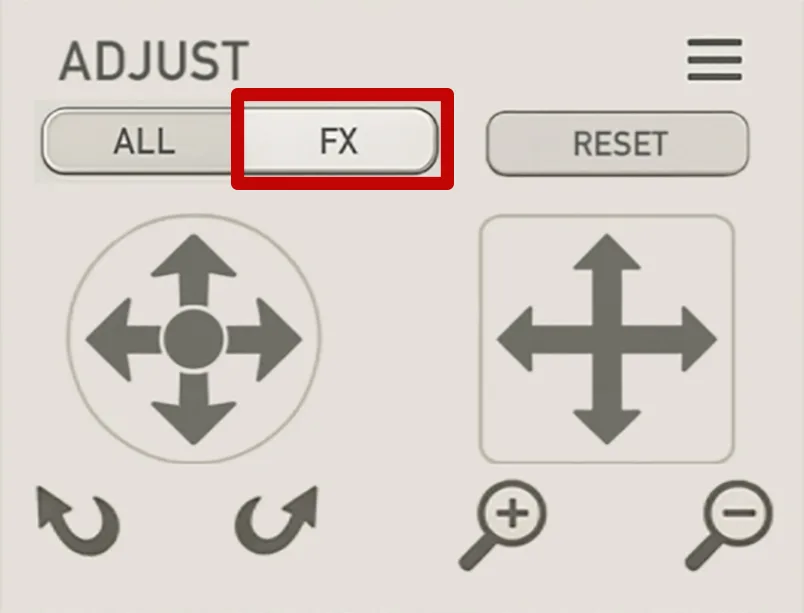
When FX is toggled, all adjustment controls affect the Effect light only.
This allows you to move and rotate the FX light independently from the other lights, giving you precise control over its position.
In FX mode you can also tilt the light and move it closer or farther away from your body, making it easy to fine-tune shadows or special effects without altering your main lighting setup.
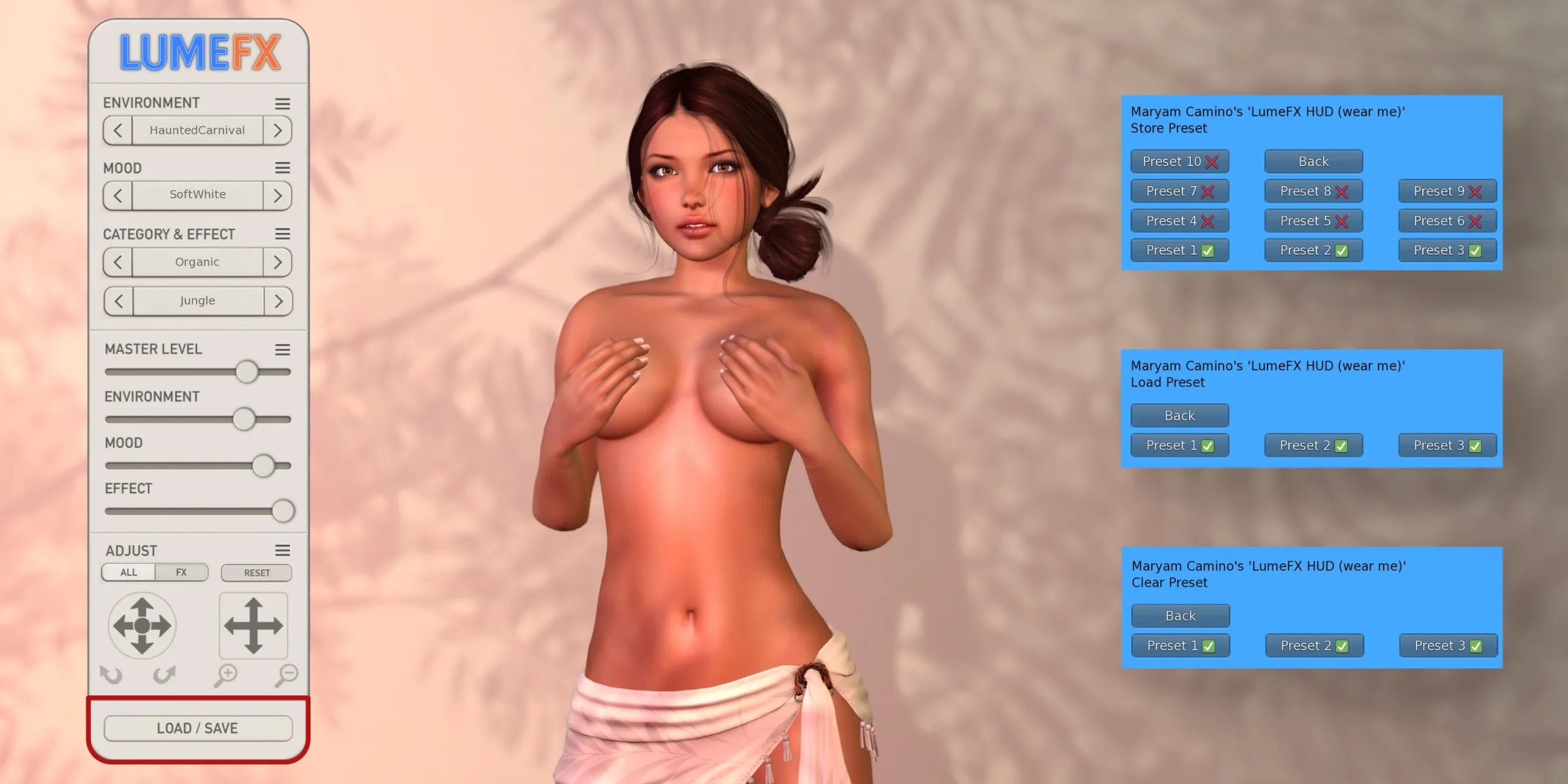
The Load / Save button lets you store and recall up to 10 custom presets. When you save, it captures everything: environment, mood, effect, all light levels, and any adjustments you’ve made. Press a slot to store, load, or clear a preset with one click, perfect for quick switching between your favorite looks.
Clicking the LUME FX logo minimizes the HUD to give you more screen space. Click it again to maximize the HUD.
Attach, adjust, and shine! ✨